Introducing Relative Strength(RS)

Relative Strength (RS) compares a stock’s price performance with a benchmark index (such as the NIFTY 50) to determine whether the stock is out-performing or under-performing the broader market.


What Relative Strength Actually Measures

Relative Strength compares:

  • A stock’s price performance
  • Against the market index (like NIFTY 50)

How to use Relative Strength in Chartink

For example RSI indicator:

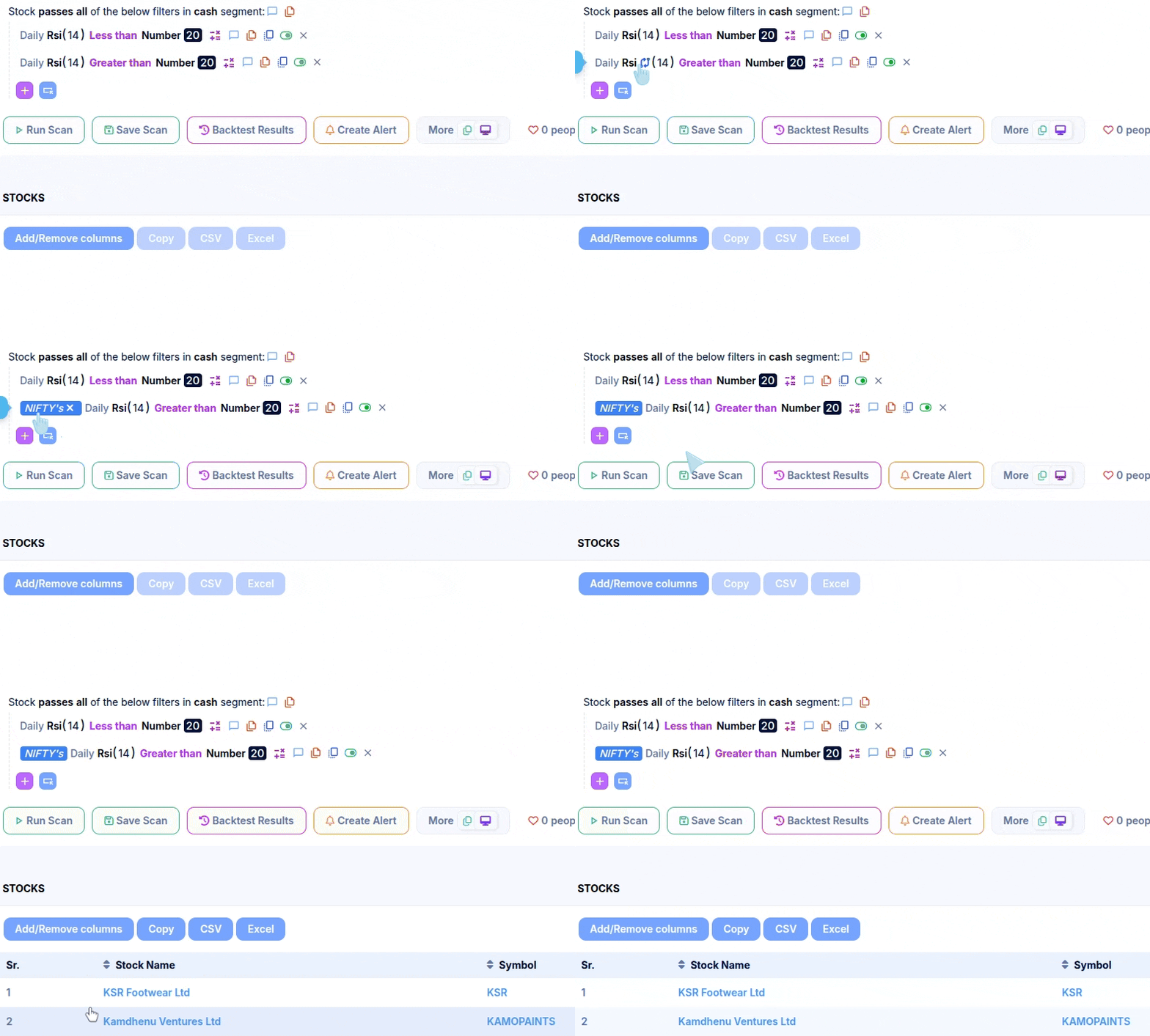
  • A stock may show weakness on its own(RSI below 20)
  • While the market remains relatively strong(RSI above 20)

Example scan: Stocks under-performing NIFTY
This image has an empty alt attribute; its file name is chrome-capture-2025-12-30-3.gif

Relative Strength Formula with Example

One practical way to measure Relative Strength is by comparing the RSI (Relative Strength Index) of a stock with the RSI of the benchmark index.

Formula: Relative Strength (RS) = Stock RSI − Index RSI
Example Dashboard: TCS x NIFTY

Using the example data:

  • Stock (TCS) RSI: 55.30
  • Index (NIFTY) RSI: 48.93
  • RS(TCS x NIFTY): +6.37 (The benchmark RSI, not a derived value.)

Since the Relative Strength value is positive, it indicates that TCS is performing better than the NIFTY index at that time.

If Stock RSI > Index RSI → Relative Strength
If Stock RSI < Index RSI → Relative Weakness


Relative Strength Using 52-Week Price Performance

Relative Strength can also be calculated using 52-week price performance, which is commonly used for medium- to long-term stock selection.

This approach normalises a stock’s price performance against the index over the same period.

Formula (52-Week Performance-Based RS)

Relative Strength (RS) = (Stock Close ÷ Stock Close 52 Weeks Ago) ÷ (Index Close ÷ Index Close 52 Weeks Ago) − 1

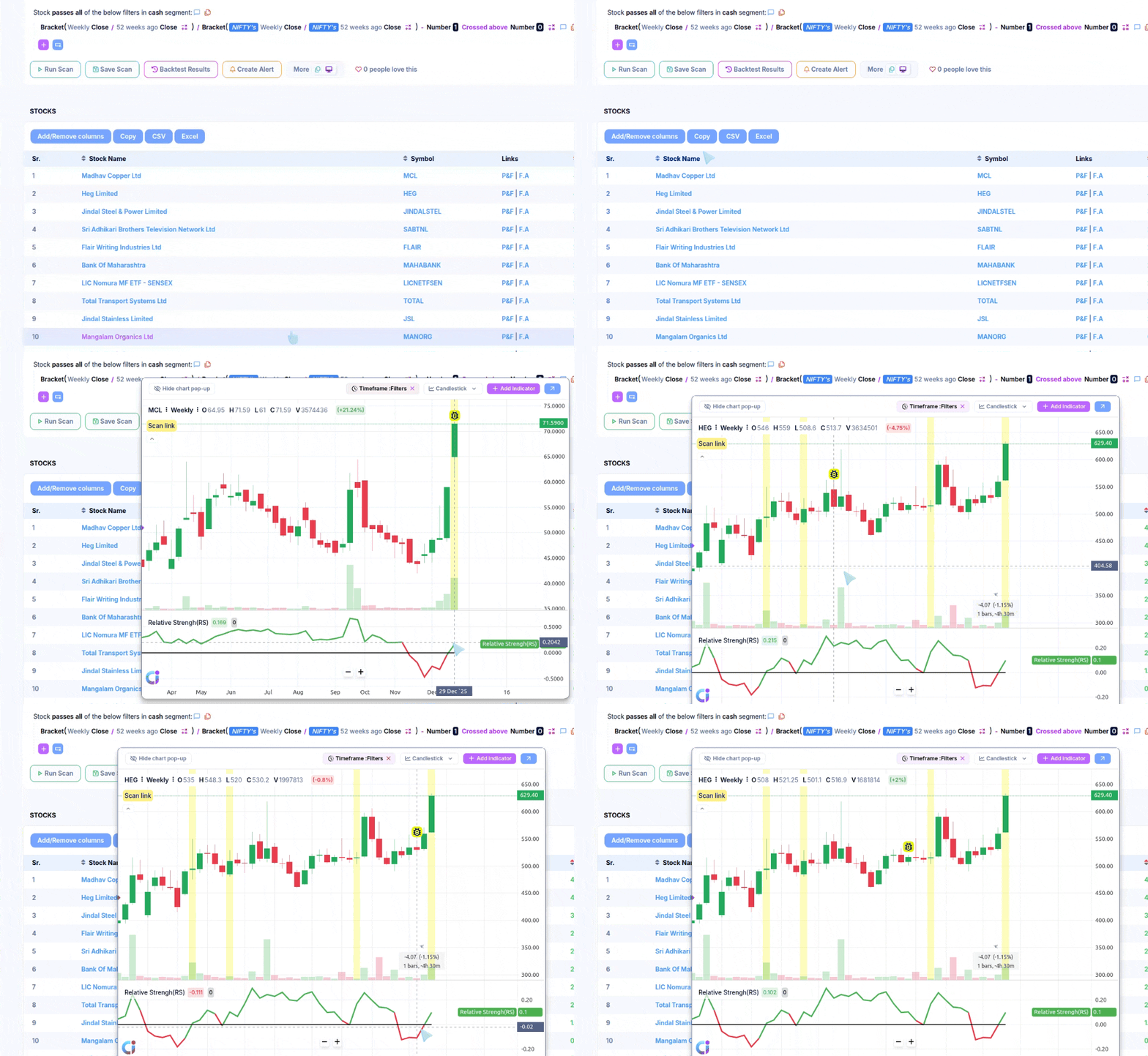
Example scan: Stock with RS positive w.r.t NIFTY 50
Chart Snapshot: Relative strength on Chart

How to Interpret 52-Week RS

  • RS above 0 → Stock has outperformed the index
  • RS below 0 → Stock has underperformed the index
Relative Strength Using 5-Day Performance Ranking vs NIFTY

This is another method of applying Relative Strength (RS), where stocks are ranked based on their price out-performance versus NIFTY over the last 5 trading days.

Example Dashboard: Top-10 stock Outperform stocks


Relative Strength comparisons must use the same indicator and timeframe for both the stock and the index.

  • Stock RSI vs Index RSI → ✅
  • Stock 15 minute MACD vs 15 minute Index MACD → ✅
  • Stock Close vs Index Close → ✅
  • Stock RSI vs Index MACD → ❌ not logically correct
  • Stock RSI (Daily) vs Index RSI (15-min) → ❌ not logically correct

Only the instrument should differ (stock vs index); the measurement method must remain identical.
Introducing Xpress Indicator

Chartink has always focused on making technical analysis easier to use—without compromising on depth. With the same objective, we’re introducing Xpress Indicator: a new indicator-generation engine that lets you turn complex indicator logic into a usable Chartink indicator in minutes.

Quick Video on Youtube

Why Xpress Indicator Was Needed

Many real-world trading indicators rely on logic that goes beyond standard indicators like SMA/EMA or simple counting conditions. They often involve multi-step calculations, custom rules, and conditional flows.

Earlier, converting such logic into a usable Chartink indicator typically required manual rework or approximation—which could unintentionally change the original strategy’s intent.

Xpress Indicator is built to close this gap.


What You Can Submit

The generator accepts indicator logic in multiple formats as mentioned below:

  • Source code
    Example: Logic / Script of the indicator.
  • Formula-based logic
    Example: Excel-style formulas, Pseudo-code and Mathematical descriptions.
  • Articles describing the logic
    Example: A blog or note explaining how the indicator identifies trends or reversals.
  • Plain English description
    Example: Step-by-step explanation of the logic or Rules describing how values are calculated.

The system reads the logic and converts it into a usable indicator.

Where It Can Be Used

Once created, Xpress Indicators can be used across:

  • Scans
  • Widgets
  • Charts

Ways to Create an Indicator

There are three supported input methods. Each method follows the same workflow and produces the same output.

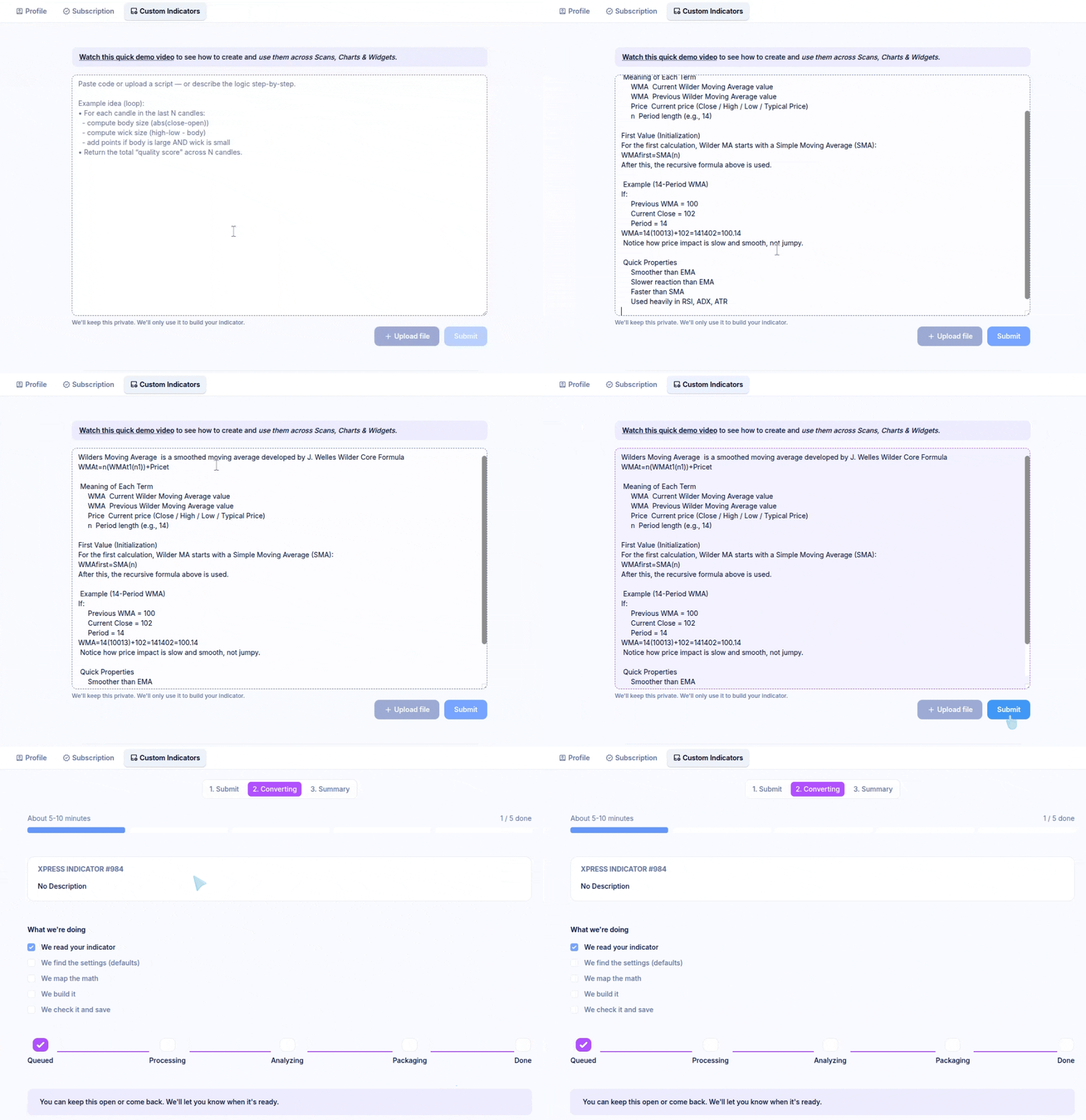
  1. Copy and paste code or formulas
    Example: Pasting an existing indicator script or mathematical formula
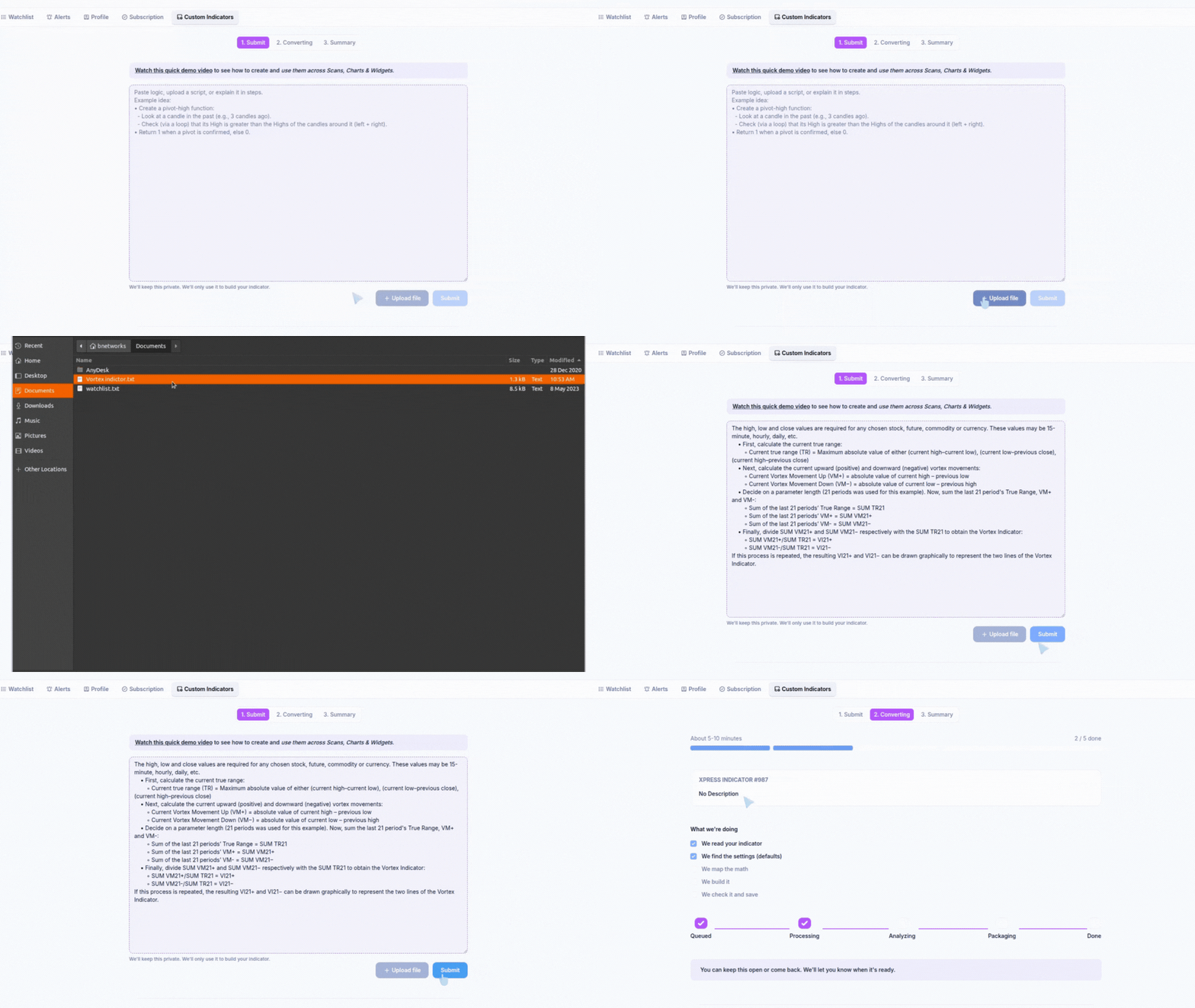
  2. Upload a pre-written script file
    Example: Uploading a saved indicator file
  3. Paste an article or website link
    Example: Providing a link that explains the indicator logic in detail

Getting Started with Xpress Indicator Creation


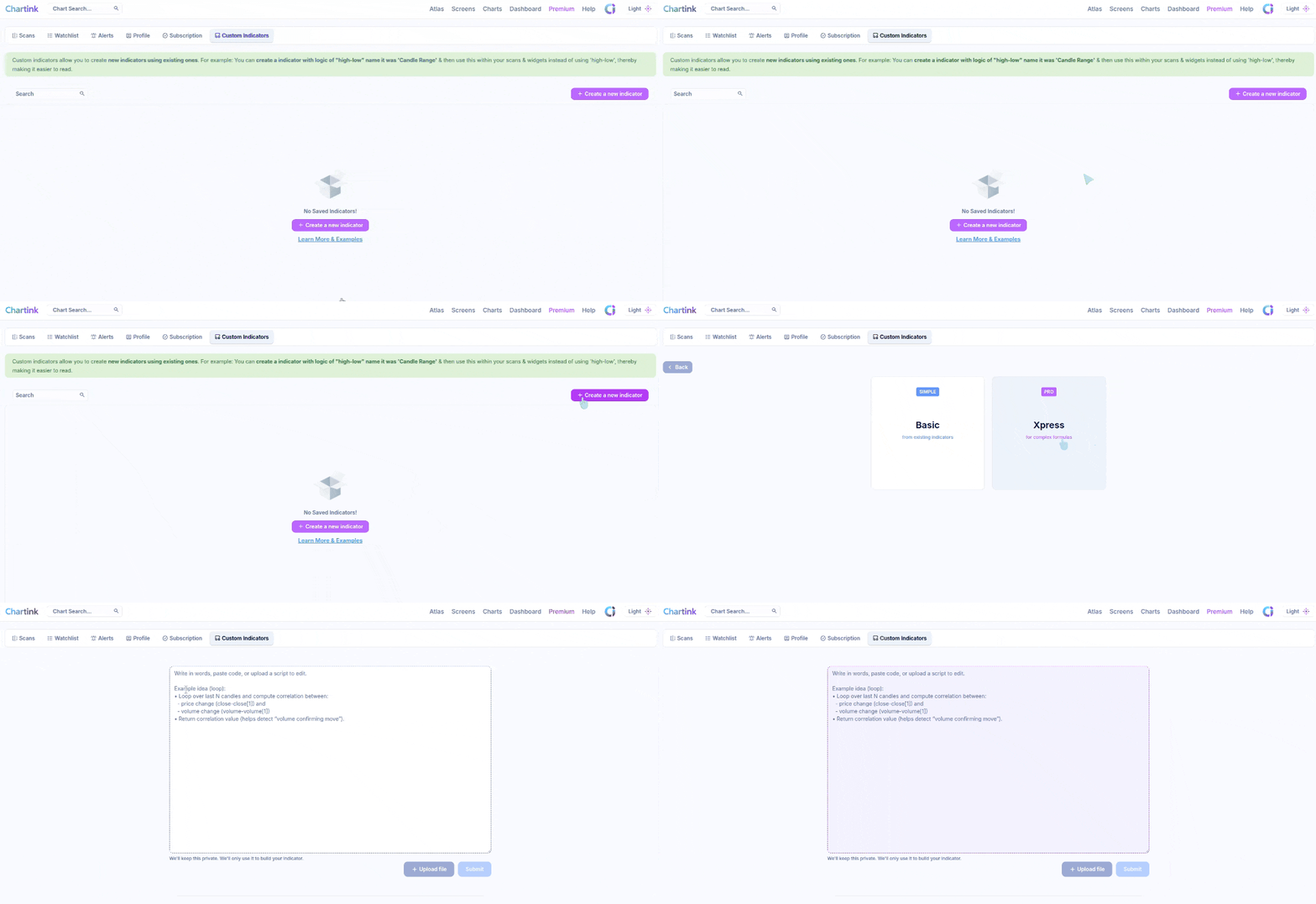
Step 1: Open the Indicator Dashboard

  1. Visit: https://chartink.com/indicator_dashboard
  2. Click Create a New Indicator

Step 2: Select Indicator Type

After clicking Create a New Indicator, you will see two options:

  • Base Indicators
  • Xpress Indicators

Select Xpress to continue, as this option supports complex formulas.


Method 1: Copy and Paste Indicator Logic

Find the formula for the indicator you want to create.

Example: Search online for the formula of Wilder’s Moving Average and copy the formula.

Make sure the logic clearly represents how the indicator is calculated.


Method 2: Upload a Pre-Written Script File

This method is useful when the indicator logic is already saved as a script file.

Example: A saved indicator script file exported from another platform or editor.


Method 3: Paste an Article or Website Link

This method is useful when the indicator logic is explained in an article or on a website rather than as code or formulas.

Example format:
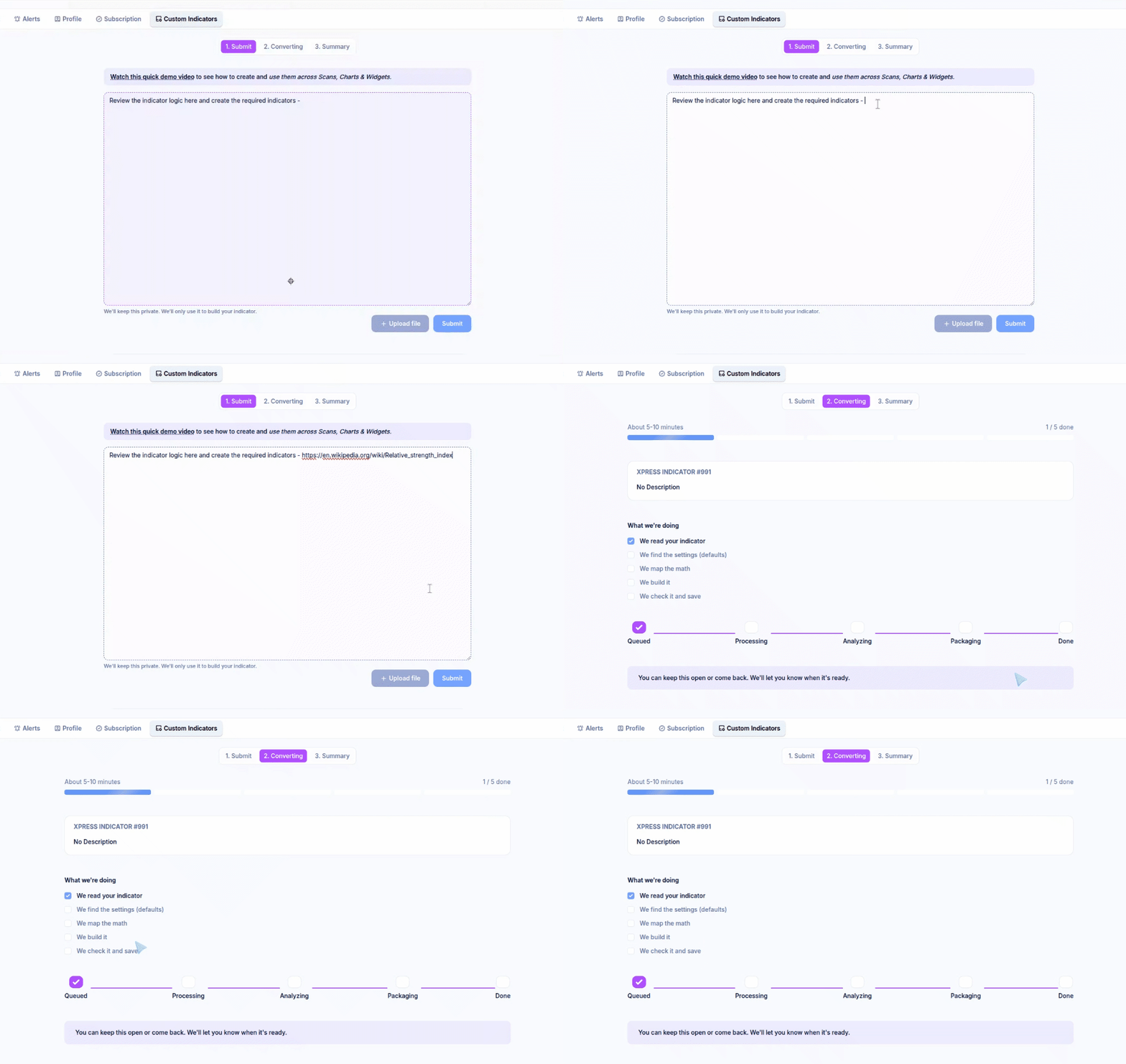
Review the indicator logic here and create the required indicator:
<article or website link>

Processing and Validation

After submission, Xpress processes the indicator. This usually takes 5–10 minutes, depending on the logic complexity. During this time, the indicator appears under Converting.

Once completed:

  • The status changes to Completed
  • The indicator becomes available for use

Before using it, validate the output:

  • Check recent candle values(Based on Daily timeframe values only)
  • Compare results with the original reference chart or script

Using Xpress Indicator Correctly (Important Guidelines)

While Xpress makes it easier to convert complex logic into indicators, it is important to use it for the right purpose. Incorrect usage can lead to confusing results, unnecessary computation, or indicators that do not behave as intended.

What Not to Use Xpress For(Not a Scan Rule Builder)

Avoid using Xpress to define logic such as:

  • Close above or below a moving average
  • RSI, volume, or price crossing a level
  • Fixed threshold checks (price, volume, market cap, etc.)
  • Simple yes/no scan conditions

These conditions are already supported efficiently inside Scans and should be added there directly.


What Xpress Indicator Is Meant For

Xpress should be used when your idea requires calculation that cannot be expressed as a simple scan filter.

Typical use cases include:

  • Loop-based logic
    • Counting consecutive candles
    • “N out of M” conditions
    • Rolling window calculations
  • Custom indicator construction
    • Indicators built from raw price data
    • Scoring or ranking systems
    • Custom smoothing or aggregation logic
  • State-based logic
    • Trailing stop calculations
    • Trend or regime identification
    • Conditions that depend on previous states
  • Math-heavy transformations
    • Z-scores
    • Correlation or regression
    • Composite or normalized indicators

In short, if your logic needs memory, iteration, or math, Xpress is the right tool.

Good vs Not ideal examples

  • Not ideal: Close > EMA(20) and RSI > 60 :x: 
  • Good: Create an RSI function from scratch by looping gains/losses; output RSI + ‘RSI rising’ flag :white_check_mark:
  • Good: Loop over last 20 candles to compute a momentum score; return score :white_check_mark: