Chartink has always focused on making technical analysis easier to use—without compromising on depth. With the same objective, we’re introducing Xpress Indicator: a new indicator-generation engine that lets you turn complex indicator logic into a usable Chartink indicator in minutes.
Quick Video on Youtube
Why Xpress Indicator Was Needed
Many real-world trading indicators rely on logic that goes beyond standard indicators like SMA/EMA or simple counting conditions. They often involve multi-step calculations, custom rules, and conditional flows.
Earlier, converting such logic into a usable Chartink indicator typically required manual rework or approximation—which could unintentionally change the original strategy’s intent.
Xpress Indicator is built to close this gap.
What You Can Submit
The generator accepts indicator logic in multiple formats as mentioned below:
- Source code –
Example: Logic / Script of the indicator. - Formula-based logic –
Example: Excel-style formulas, Pseudo-code and Mathematical descriptions. - Articles describing the logic –
Example: A blog or note explaining how the indicator identifies trends or reversals. - Plain English description –
Example: Step-by-step explanation of the logic or Rules describing how values are calculated.
The system reads the logic and converts it into a usable indicator.
Where It Can Be Used
Once created, Xpress Indicators can be used across:
- Scans
- Widgets
- Charts
Ways to Create an Indicator
There are three supported input methods. Each method follows the same workflow and produces the same output.
- Copy and paste code or formulas
Example: Pasting an existing indicator script or mathematical formula - Upload a pre-written script file
Example: Uploading a saved indicator file - Paste an article or website link
Example: Providing a link that explains the indicator logic in detail
Getting Started with Xpress Indicator Creation
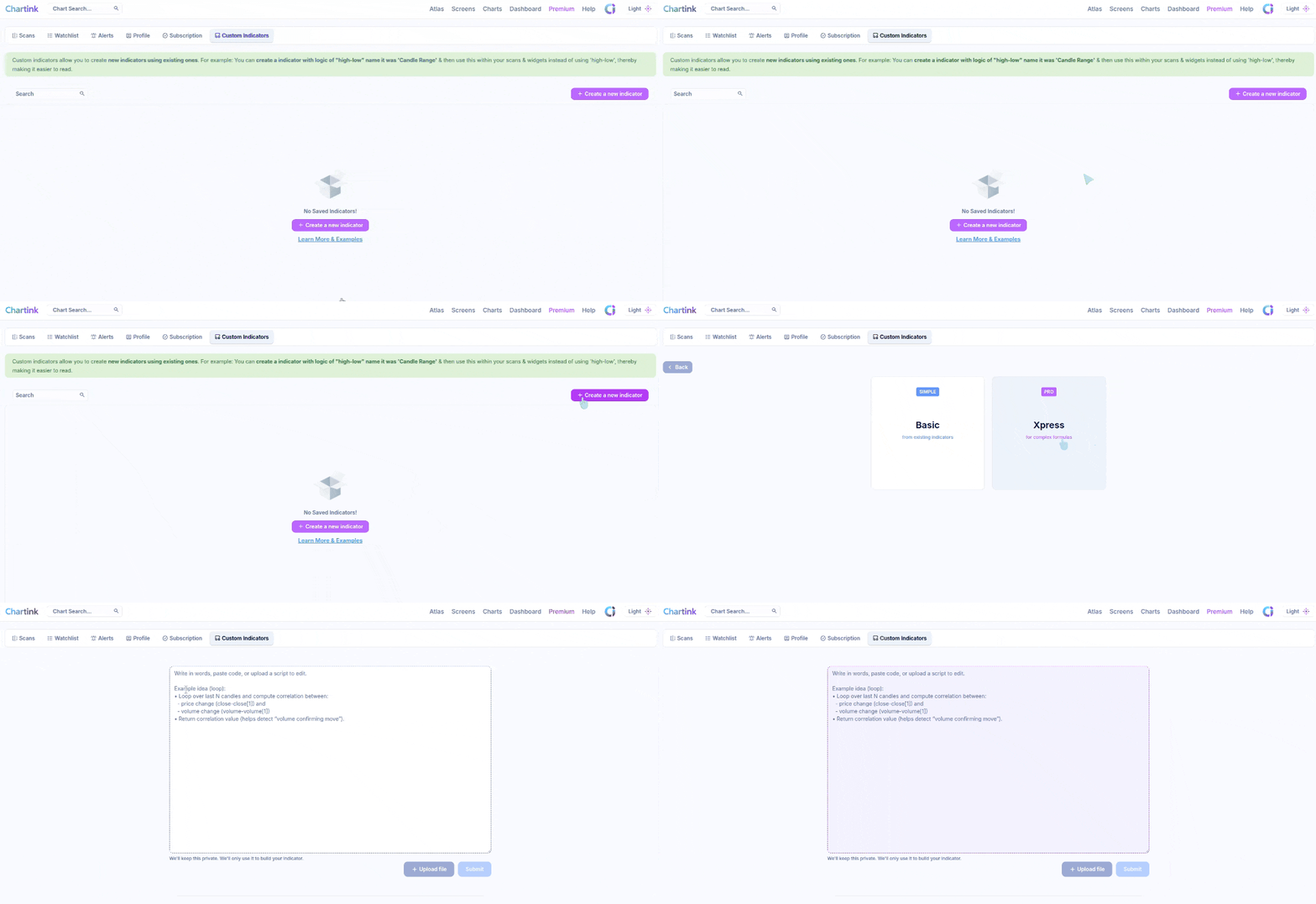
Step 1: Open the Indicator Dashboard
- Visit: https://chartink.com/indicator_dashboard
- Click Create a New Indicator
Step 2: Select Indicator Type
After clicking Create a New Indicator, you will see two options:
- Base Indicators
- Xpress Indicators
Select Xpress to continue, as this option supports complex formulas.
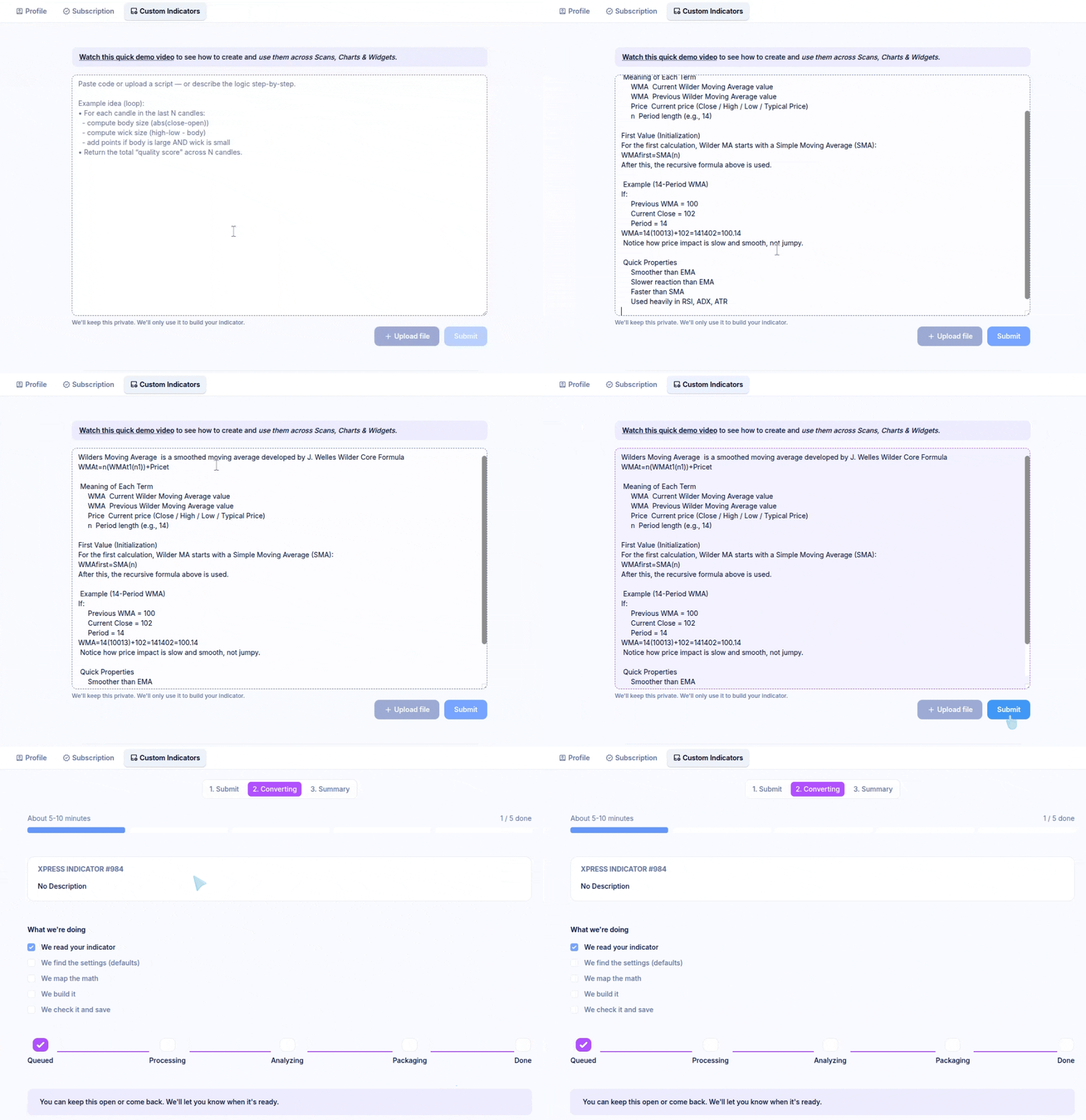
Method 1: Copy and Paste Indicator Logic
Find the formula for the indicator you want to create.
Example: Search online for the formula of Wilder’s Moving Average and copy the formula.
Make sure the logic clearly represents how the indicator is calculated.
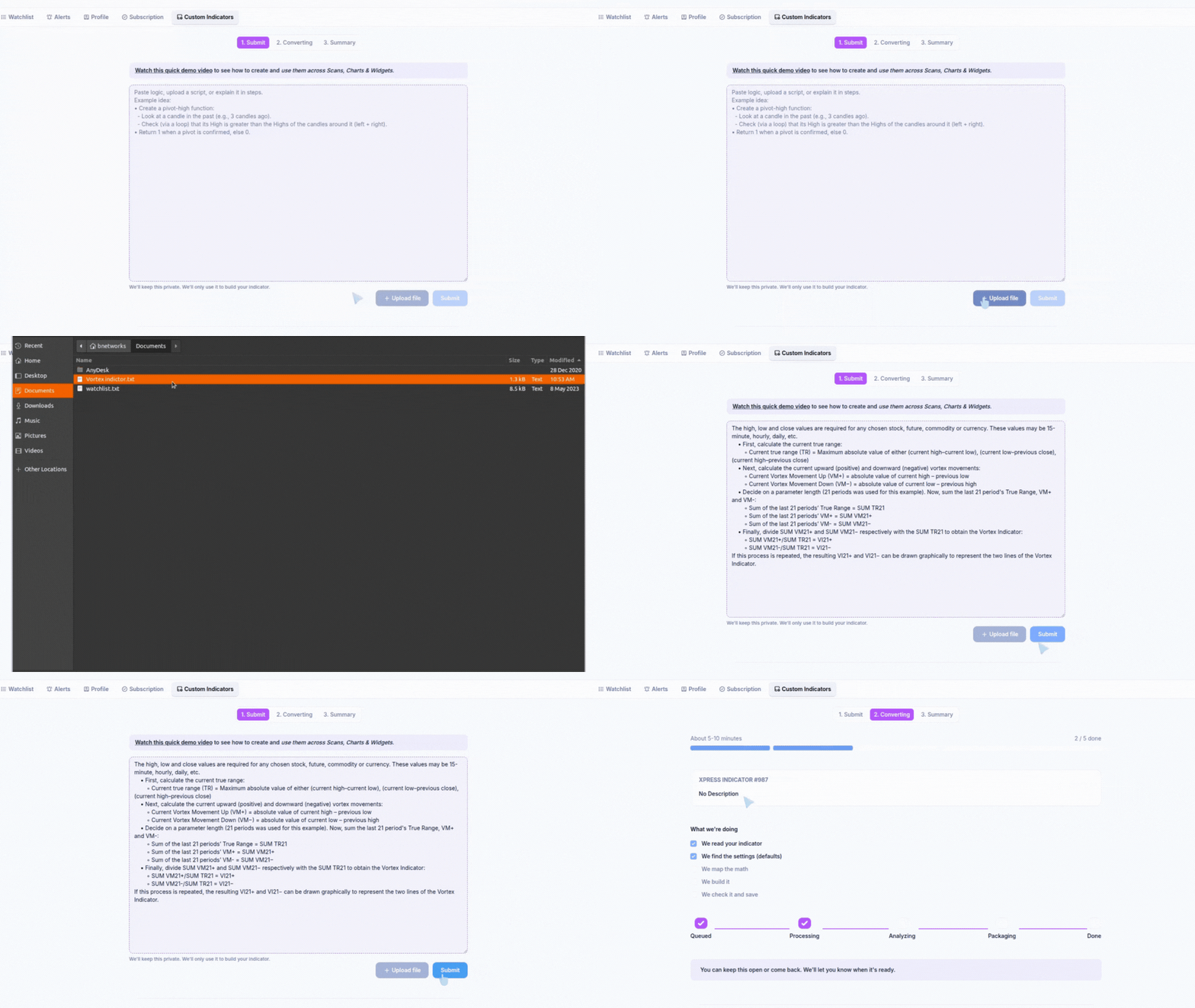
Method 2: Upload a Pre-Written Script File
This method is useful when the indicator logic is already saved as a script file.
Example: A saved indicator script file exported from another platform or editor.
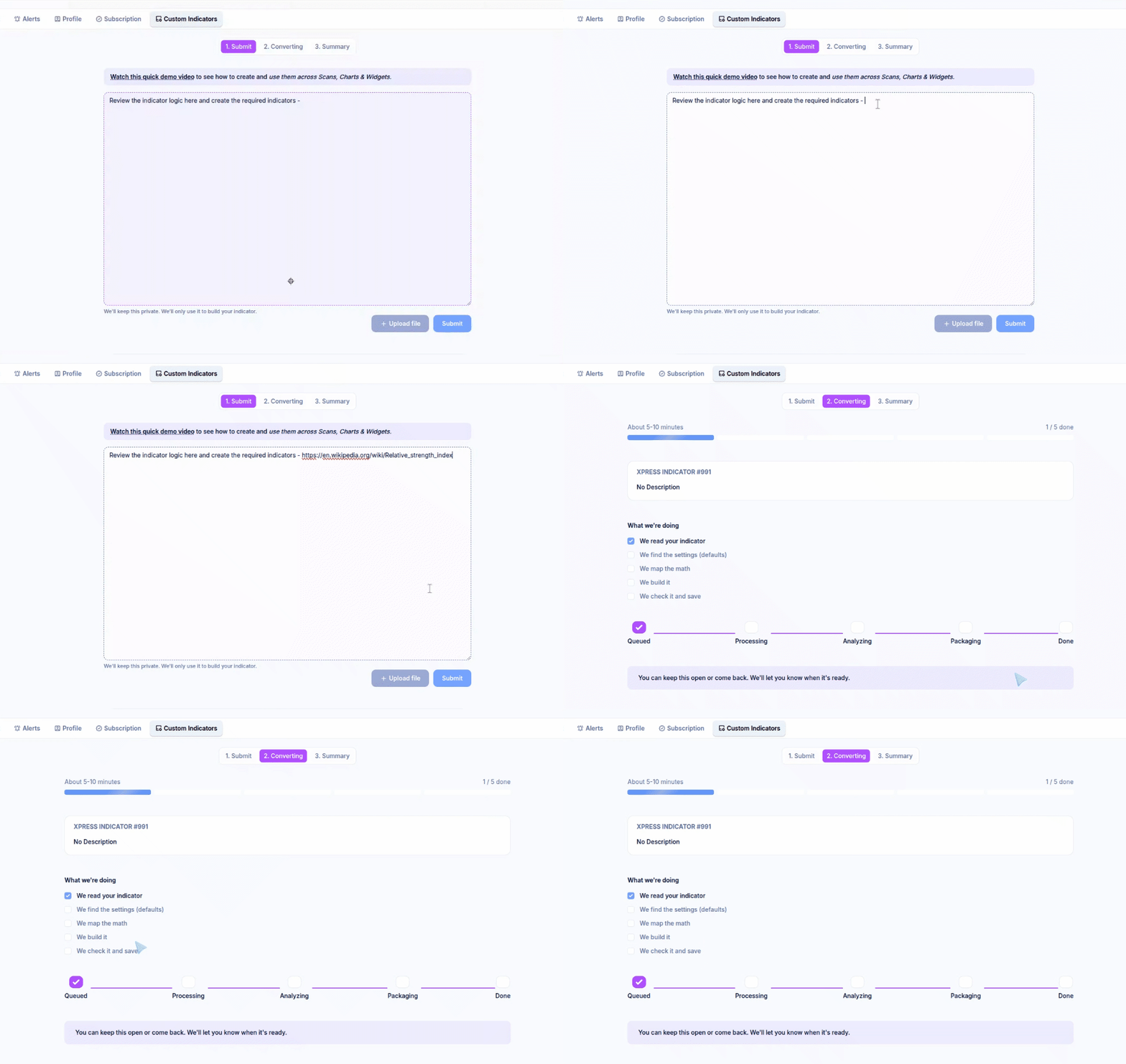
Method 3: Paste an Article or Website Link
This method is useful when the indicator logic is explained in an article or on a website rather than as code or formulas.
Example format:Review the indicator logic here and create the required indicator:<article or website link>
Processing and Validation
After submission, Xpress processes the indicator. This usually takes 5–10 minutes, depending on the logic complexity. During this time, the indicator appears under Converting.
Once completed:
- The status changes to Completed
- The indicator becomes available for use
Before using it, validate the output:
- Check recent candle values(Based on Daily timeframe values only)
- Compare results with the original reference chart or script
Using Xpress Indicator Correctly (Important Guidelines)
While Xpress makes it easier to convert complex logic into indicators, it is important to use it for the right purpose. Incorrect usage can lead to confusing results, unnecessary computation, or indicators that do not behave as intended.
What Not to Use Xpress For(Not a Scan Rule Builder)
Avoid using Xpress to define logic such as:
- Close above or below a moving average
- RSI, volume, or price crossing a level
- Fixed threshold checks (price, volume, market cap, etc.)
- Simple yes/no scan conditions
These conditions are already supported efficiently inside Scans and should be added there directly.
What Xpress Indicator Is Meant For
Xpress should be used when your idea requires calculation that cannot be expressed as a simple scan filter.
Typical use cases include:
- Loop-based logic
- Counting consecutive candles
- “N out of M” conditions
- Rolling window calculations
- Custom indicator construction
- Indicators built from raw price data
- Scoring or ranking systems
- Custom smoothing or aggregation logic
- State-based logic
- Trailing stop calculations
- Trend or regime identification
- Conditions that depend on previous states
- Math-heavy transformations
- Z-scores
- Correlation or regression
- Composite or normalized indicators
In short, if your logic needs memory, iteration, or math, Xpress is the right tool.
Good vs Not ideal examples
- Not ideal: Close > EMA(20) and RSI > 60

- Good: Create an RSI function from scratch by looping gains/losses; output RSI + ‘RSI rising’ flag

- Good: Loop over last 20 candles to compute a momentum score; return score
it’s great but please update sector scan means if auto sector is bullish then which stocks under auto sector is outperform
and delivery Relative strength of nifty
Hello Sumit,
You can refer to the attached atlas below. When you click on the bar chart for the first widget, the second widget will display the stock additions for the specific stocks in that sector.
https://chartink.com/dashboard/127451
Could you please provide a simple example script, instead of asking to us to search for a script online please.
I searched for “Wilder’s Moving Average”, but could not find any script.
Which language this script should be written in?
Same as tradingview script?
Hello,
Based on your provided input, Below i have created a scanner for you, Kindly review –
https://chartink.com/screener/wilder-s-moving-average
We support most of the code/scripts available online. You can also paste the Pine code as well.
One blog can lead to no more confusion.
Hello,
Please let us know the exact confusion you are facing, and we will try to clarify the same. Kindly let us know if you watched a YouTube video related to the same.
youtube.com/watch?v=lcPnaCTAdPA&feature=youtu.be
can it store variables as in pine script
Hello,
Here, we assume you are referring to the ‘xpress indicator’ feature. If yes, it can. Kindly share the details related to the same to this email ID: [email protected] so we can try to create the same.
Hi Team Chartink,
I tried creating express indicators out of which 3 has been still in gthe processing stage with the dates being:-
1) 6th Feb
2) 14th Feb
3) 16th Feb since 1 hour of posting this message
Now due to this it is not letting me create any other indicator stating i have 3 indicators under process. Need help on this as i am stuck.
Hello,
Please share the link/formula of those indicators to this email ID: [email protected] So, we can try to create the same at our end. Don’t worry we will delete the queued indicators from your account, so we you can create other one’s.
i made an indicator Universal Z-Score V4 a few mins back by sharing my indicators pine script.
process is complete but issue is figures aren’t matching
Hello,
Please share the link/logic/pine script to the indicator along with the sample chart image for the same to this email ID: [email protected] so we can try to create the indicator.
can you please give chartink code for stocks at lower value and higher value of market profile Thank you
Greetings! At this moment, we do not offer the feature of market profile, as you mentioned. Nonetheless, we are actively exploring the option of adding it along with new indicators.
I am unable to provide a specific timeline for the addition of this feature, but I have forwarded your request to our Development team for future consideration.
We value your patience and look forward to enhancing our service for our valuable users.
your site is powerfull, but i am unable to use, means unable to understand, how to use,last year i tried somewhat understand , but after year i open again that same problem
Hello,
Thank you for the your appreciation. You can use our official YouTube page to seek further guidance. Below is the link for the same. Kindly review. Also, if you have any specific doubt, you can contact our support team via this email ID: [email protected]
https://www.youtube.com/@ChartinkConnect
Hi ChartInk Support,
Is it possible to create indicator for “ALL TIME HIGH” using this new XPRESS Indicator feature?
It would be nice if ALL TIME HIGH feature can be implemented, because it is not easy to scan IPO stocks or stocks, which don’t have any price history beyond 2, 3 years.
Thanks in advance & Best regards,
Venkatesh.
Hello,
Kindly note that we have already created the indicator for an all time high. Please review.
https://chartink.com/screener/price-above-life-time-high-4
Here is the ‘xpress’ indicator guide, too: https://www.youtube.com/watch?v=lcPnaCTAdPA&t=3s
Meanwhile i tried my luck and the prompt is here.
———————–
1.Calculate the maximum high price of the stock from the IPO period.
x = Maximum High Price from the IPO
Name the indicator as “ATH”
———————–
The results for my prompt is also matching with your indicator. 🙂
Is it possible to share the prompt, which you have used to create the “Lifetime High – Lifetime High” & “Lifetime High – Lifetime High Bar Index” prompts – just to read & understand the prompts in detail.
Hello,
Kindly note that you can open the indicator by clicking on the ‘purple’ icon infront of the indicator, there you will find the ‘input’ section, where you can review the prompt that was used to create the indicator.